Increase Internet Speed for Online Gaming and Lower Ping
Lag and high ping lose matches. A fast download speed doesn’t guarantee a smooth gaming experience—you need low latency and rock-solid stability. Here’s how to optimize your connection for competitive gaming, not just streaming.
Rule #1: Wire Everything You Can (The Non-Negotiable)
Wi-Fi is the enemy of competitive gaming. It adds latency (ping spikes) and is vulnerable to interference.
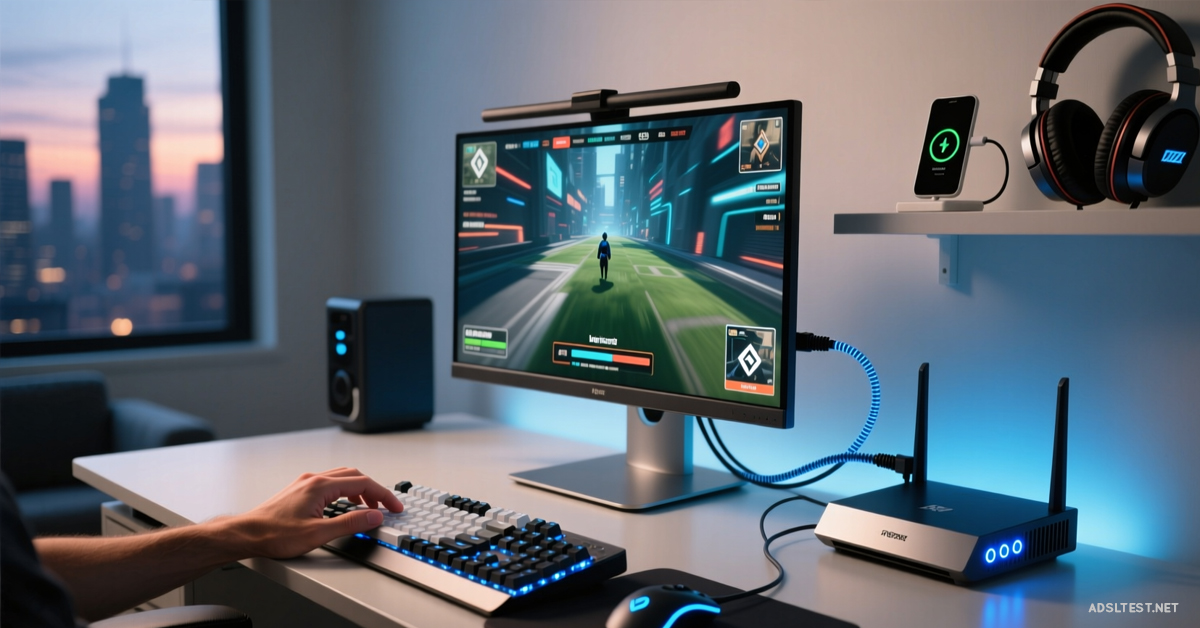
Use an Ethernet Cable: This is the single biggest improvement. A direct wired connection to your router provides lower, more consistent ping and eliminates packet loss. Use a Cat6 or Cat5e cable for best results.
If You MUST Use Wi-Fi:
Ensure your router and PC/console support Wi-Fi 6 (802.11ax).
Use the 5 GHz band exclusively and sit as close to the router as possible.
In your router settings, enable QoS (Quality of Service) and prioritize your gaming device’s MAC address.
The Ping Killers: Find and Eliminate Them
Ping is the round-trip time for data. Lower is better. Identify what’s inflating yours.
Run a Pathping/Traceroute: Open Command Prompt (Windows) and type tracert 8.8.8.8. Look for high jumps (over 100ms) at a specific “hop.” This shows where the congestion is—if it’s inside your ISP’s network, you may need to call them.
Stop ALL Background Traffic: Every device and app using your internet adds latency.
Pause all downloads/updates on other devices (Windows Update, Steam, consoles).
Disable cloud backups (OneDrive, iCloud, Google Backup) during gaming sessions.
Ask housemates to avoid streaming 4K video while you play.
Optimize Your Router for Gaming
Your router’s default settings are for general use, not gaming.
Enable QoS (Quality of Service): This feature prioritizes gaming traffic. Look for “Gaming Mode” or manual settings where you can prioritize your console/PC’s IP or MAC address.
Forward Ports (For Specific Games): Reduce NAT issues and potential lag spikes by forwarding the ports your game uses. Find the required ports for your game (e.g., Call of Duty, Valorant) and set up Port Forwarding in your router admin panel.
Change Your DNS: Your ISP’s default DNS can be slow. Switch to a faster, gaming-friendly DNS like:
Cloudflare:1.1.1.1 and 1.0.0.1
Google:8.8.8.8 and 8.8.4.4
Test which gives you lower ping with a tool like DNS Benchmark.
Choose the Right Server Manually
Don’t let the game auto-select. A closer server means lower ping.
In-Game: Always select the server region closest to your physical location.
For PC: Use a tool like ExitLag or WTFast (gaming VPNs) to find the most direct, uncongested route to the game server. They can often lower ping by routing traffic more efficiently than your ISP.
Upgrade Strategically (If All Else Fails)
If you’ve optimized settings and still have high ping, your hardware or plan may be the limit.
Upgrade Your Internet Plan: Look for fiber optic plans first. They offer symmetrical upload/download and the lowest possible latency. Cable is second-best; avoid satellite (600ms+ ping).
Get a Gaming Router: Invest in a router with a strong, dedicated gaming QoS engine (like ASUS with GameFirst or Netgear with DumaOS). These can make a noticeable difference in a busy household.
Check Your PC/Console: Ensure your network adapter drivers (on PC) are up to date. On console, use a wired connection and close all suspended games/apps.
Quick Pre-Game Session Checklist
Connect via Ethernet.
Pause all other device downloads/streams.
Restart your modem and router.
Select the closest game server manually.
Run an in-game network test to confirm ping is stable.
Final Score: Winning the latency war is about control. You control your connection with a wire, your router settings, and your network traffic. Dial in these steps, and you’ll trade frustrating lag spikes for the crisp, instantaneous response that separates a good play from a highlight reel.
2026 Global Internet Speed Ranking: Top 10 Countries with the fastest internet speed
Fastest Internet in Europe: 2026 Country Rankings
Cities with the Fastest Internet in the World (2026 Data)
Global Mobile Internet Speed Ranking for 2026 : Top 10 countries